How to Create a Kharty with AI: Step-by-Step Guide
Something so specific nobody has made it yet? Describe it and Kharty draws it for you, with every term labelled and ready to study. This guide walks you through creating your game with AI on kharty.com, step by step and with real screenshots.
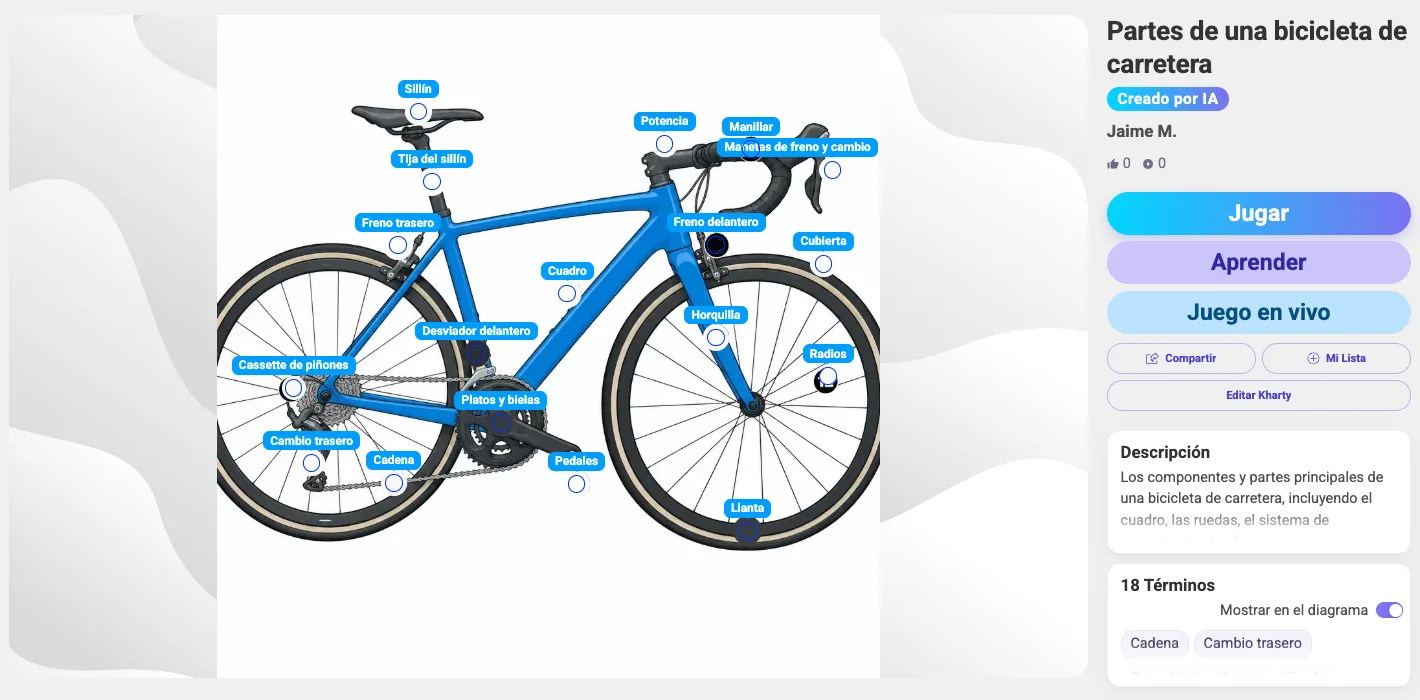
Create your game with AI
With Create with AI you don't need to find an image or place terms by hand. You write what you want to study and Kharty does the rest: it suggests the terms, draws the image, places every term where it belongs and checks the result. You just review and publish.
For this guide we asked for "The parts of a road bike", a very specific topic that wasn't in the library yet. A couple of minutes later we had a Kharty with 18 terms, ready to play. (The screenshots show the Spanish interface; the English one is identical.)
Prerequisites
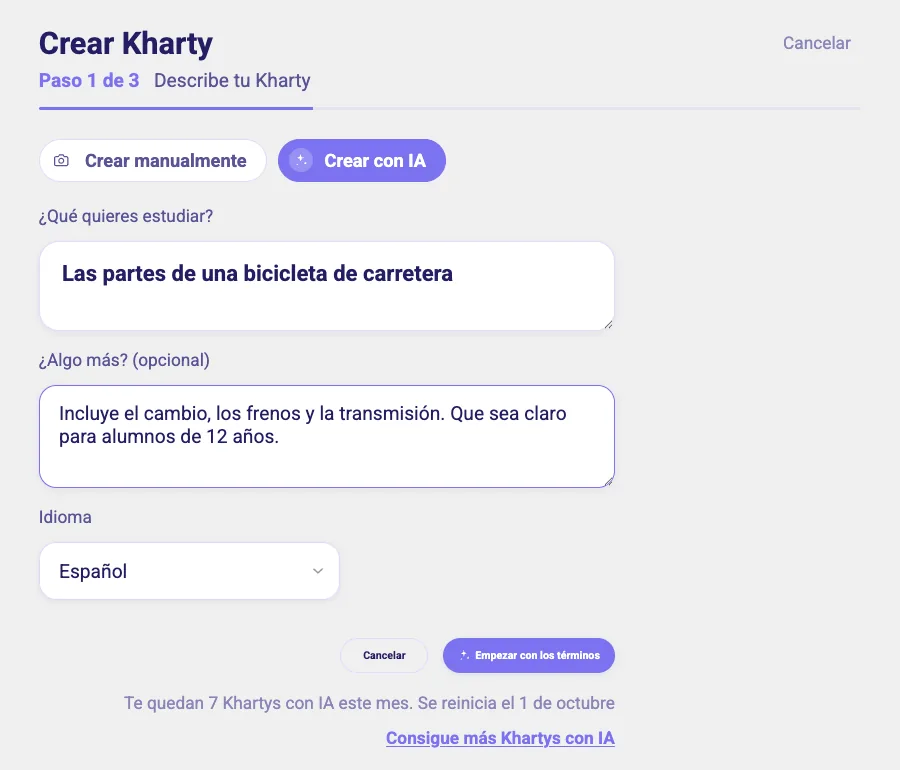
You need a Kharty account and to be signed in at kharty.com. Below the form you'll see how many AI Khartys you have left this month and when the counter resets; Kharty+ and PRO let you create more.
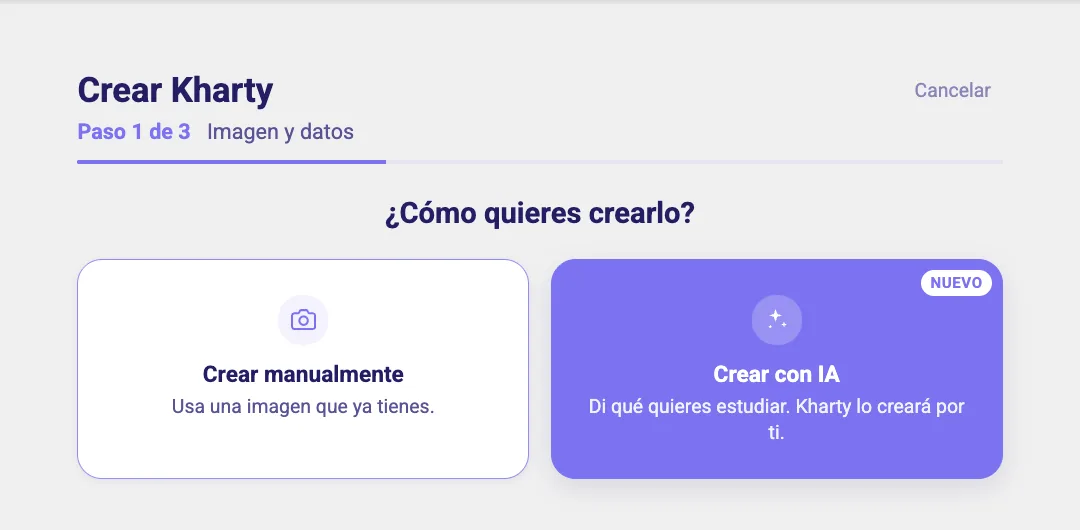
Step 1 — Choose "Create with AI"
From your dashboard, click "Create Kharty" in the top navigation bar. Kharty asks "How Do You Want to Create It?": choose Create with AI.
Step 2 — Describe your Kharty
Fill in the "Describe Your Kharty" form:
- What do you want to study?: the topic, in your own words. The more specific, the better: "The parts of a road bike", "The bones of the hand", "The countries of South America".
- Anything else? (optional): instructions to fine-tune the result, e.g. "Include the gears, brakes and drivetrain" or "Keep it clear for 12-year-olds".
- Language: the language the terms will be written in.
Click "Start with the Terms".
If Kharty's library already has a Kharty on that exact topic, it will offer it to you so you can play it straight away or, if you prefer, create your own anyway ("Create My Own Anyway").
Step 3 — Review the terms
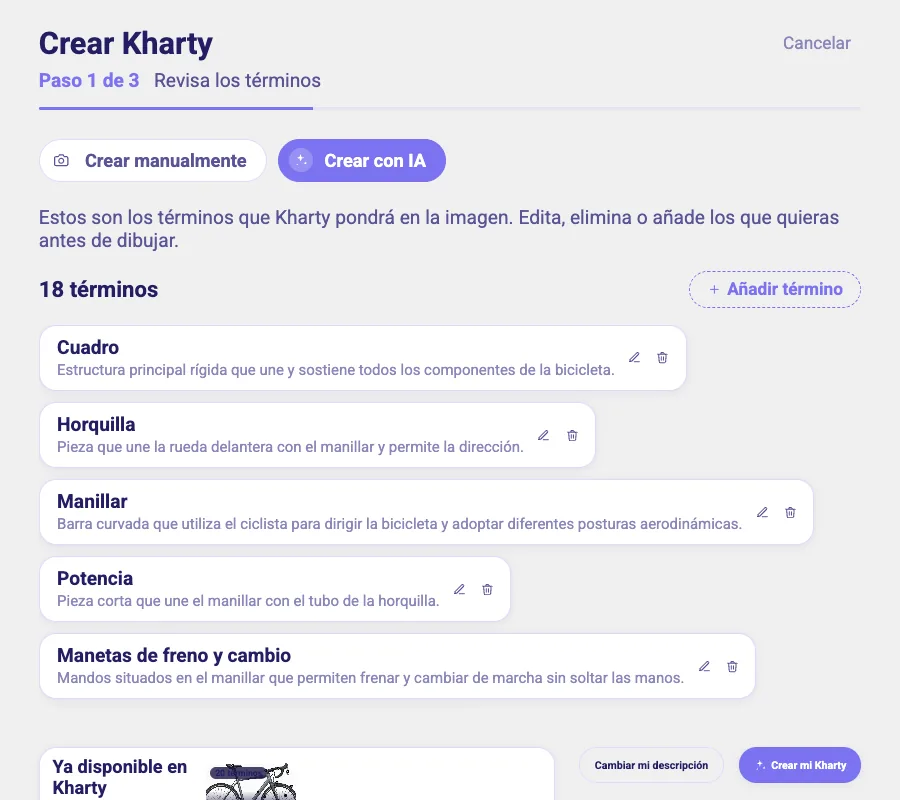
Before drawing anything, Kharty shows you the list of terms it will place on the image, each with a short definition. You can edit (pencil icon), delete (bin icon) or add as many as you like with "+ Add Term".
When the list looks right, click "Create My Kharty". If you'd rather rethink the topic, use "Change My Description".
Step 4 — Kharty creates your game
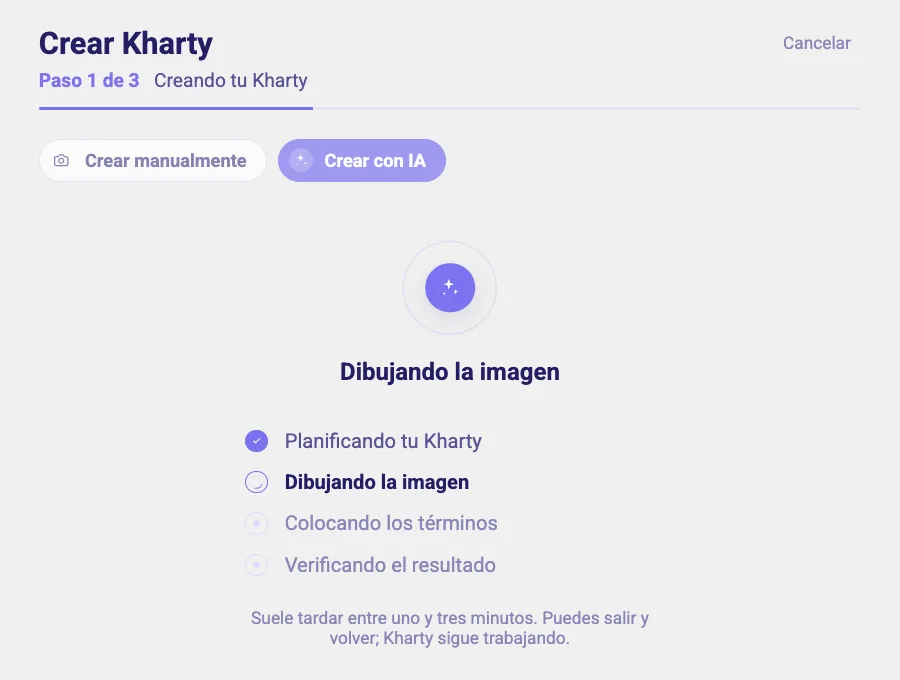
You'll see progress in four phases: planning your Kharty, drawing the image, placing the terms and verifying the result. If Kharty spots that the first drawing could be better, it makes a new one automatically.
It usually takes one to three minutes. You can leave and come back: Kharty keeps working and picks up where you left off.
Step 5 — Review the drawing and terms (Step 2 of 3)
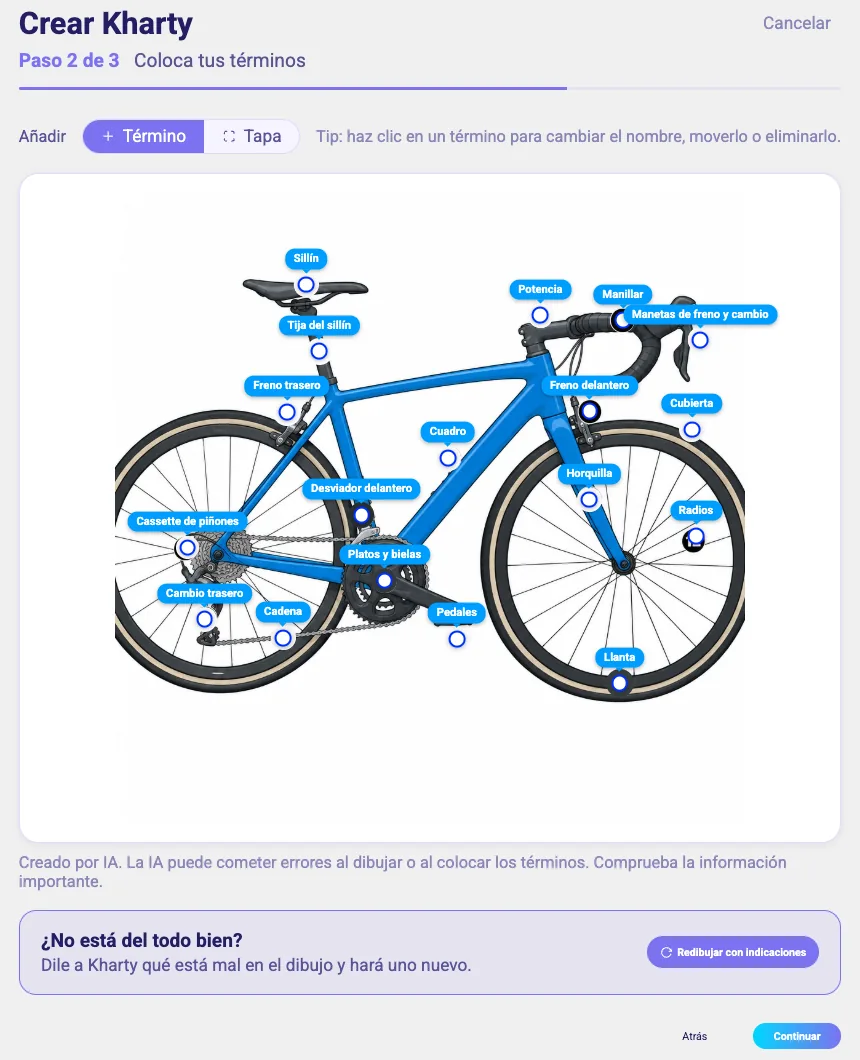
When it's done, the image appears with every term labelled in place. From here you can:
- Click a term to rename it, move it or delete it.
- Add more terms or covers with the buttons at the top.
Below the drawing you'll see the "Created by AI" notice: AI can make mistakes when drawing or placing terms, so it's worth a quick look before publishing.
Not quite right? Redraw with Feedback
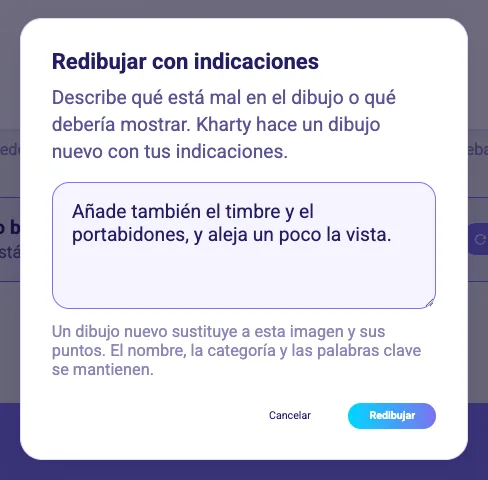
If the drawing isn't what you expected, click "Redraw with Feedback" and tell Kharty what's wrong or what it should show, e.g. "Also add the bell and the bottle cage, and zoom out a little". Kharty makes a new drawing that replaces the previous one; the name, category and keywords stay the same.
When you're happy, click "Continue".
Step 6 — Review and publish (Step 3 of 3)
On the final screen:
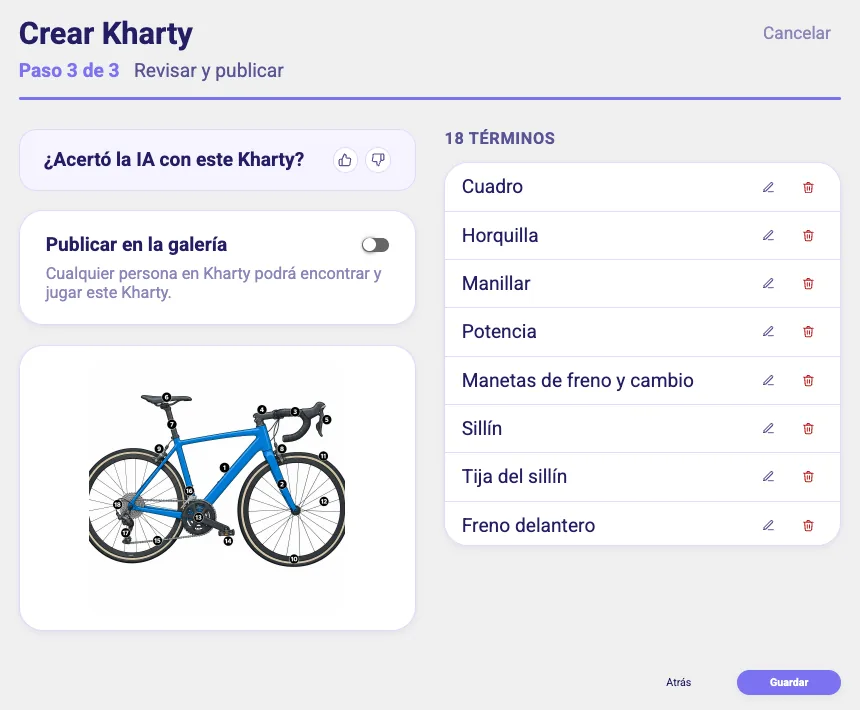
- Review the terms: the full list, with the option to edit or delete any of them.
- Publish to Gallery: turn it on so anyone on Kharty can find and play your Kharty. Leave it off to keep it private.
- Did the AI get this Kharty right?: rate the result with a thumbs up or down. It helps the next one turn out better.
Click "Save".
Result
Your Kharty appears under "My Creations" on your dashboard, marked Created by AI and ready to Play, Learn or run as a Live Game with your class.

Tips to help the AI get it right
- Ask for things you can point to in a picture: parts, places, countries, organs, components. "The parts of a flower" works; "The French Revolution" doesn't, because there's nothing to point to.
- Be specific: "The bones of the hand" works better than "The human body".
- Use "Anything else?" to narrow it down: what to include, what to leave out and what age it's for.
- Kharty doesn't draw real people, famous characters or brands. If your topic needs them, create the Kharty manually with your own image.
- Always review before publishing, especially if you'll use it for an exam.
Prefer to use an image you already have? See the guide How to Create a New Kharty step by step.
What do you want your students to study tomorrow? Describe it and Kharty draws it for you.